How to Compress a PDF Without Losing Quality
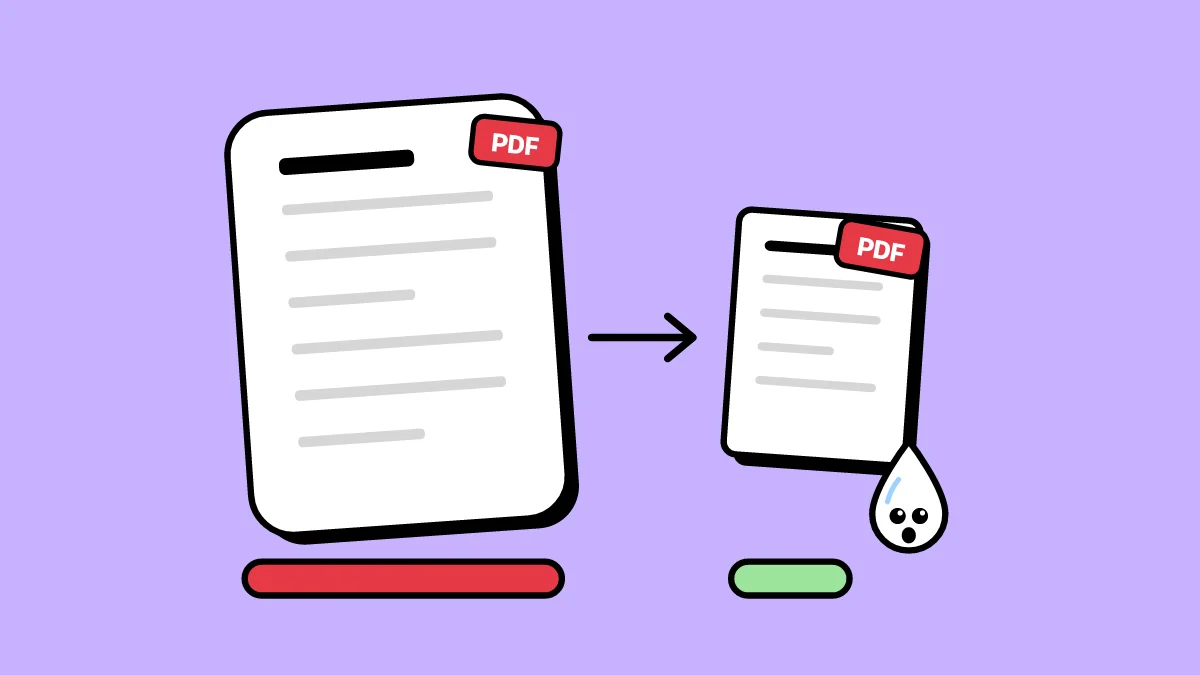
A PDF that is too big to email or upload is almost always big because of pictures: scans, photos, screenshots. Those are what compression can shrink.
What ColaPDF does to your file
ColaPDF redraws each page as a compressed image and keeps that version only if it is smaller than the file as it was. Scans and image-heavy files shrink a lot. The catch: on a redrawn page the text becomes part of the picture, so you can no longer select or search it. If nothing gets smaller, you get your original back.
How to compress a PDF
- Open Compress PDF and drop your PDF on the page.
- Pick a level: Light, Recommended or Strong. Or choose Under a size and type a limit, such as 200 KB.
- Click Compress PDF and download the result. The new size is shown next to the old one.
Which level to pick
- Light: the best quality, and the smallest saving. For documents you may print.
- Recommended: small enough for email, still sharp on screen.
- Strong: the smallest file. Photos and fine print get softer.
- Under a size: for forms with an upload limit. You get the best quality that fits.
If it is still too big
Scans and photos shrink the most; a text-only PDF from Word is often already small. If the limit is very low, split the PDF into parts or remove the pages you don't need, then compress again. Keep the original if you need its text to stay selectable.
Do it now: Compress PDF