How to Split a PDF Into Multiple Files
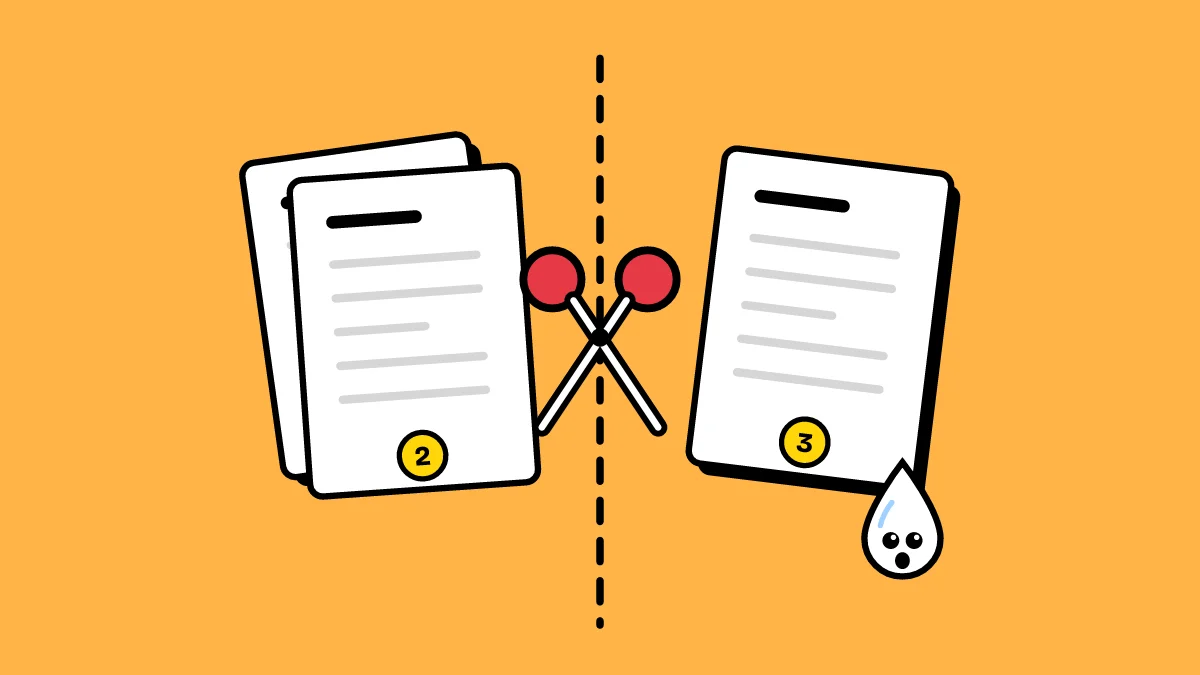
A single PDF often holds more than you want to send: invoices scanned together, one chapter of a manual, the signed page of a contract. Splitting gives you just the part you need.
Three ways to split
- Every page: each page becomes its own PDF, all in one ZIP. The quickest way to turn a scanned bundle back into separate documents.
- Custom cuts: click between two pages to cut there. Each part becomes a PDF.
- Pick pages: tap the pages you want, for example 1 to 3, 5 and 8 to 10. They come out together in one new PDF.
How to split a PDF
- Open Split PDF and drop your PDF on the page.
- Choose Every page, Custom cuts or Pick pages.
- Click the button and download the files, or all of them as a ZIP.
Does splitting reduce quality?
No. The pages are copied into the new files as they are, so text, fonts and images stay exactly as in the original.
Do it now: Split PDF